
Watching something on a Chromebook with a friend, a partner or your kid usually means sharing one pair of earbuds. ChromeOS only plays sound through one output at a time (the speakers, the headphone jack, a USB-C headset or one Bluetooth device), and unlike Windows or macOS it has no hidden setting to send it to two. That leaves three ways to do it, depending on the headphones you have.
Which method fits your headphones?
| Your headphones | Best way | Separate volumes? | Cost |
|---|---|---|---|
| Two wired (3.5 mm) | Headphone splitter | No | A few dollars |
| One wired + one USB-C | Chrome extension | Yes | Extension |
| One wired + one Bluetooth | Chrome extension | Yes | Extension |
| Two Bluetooth | Chrome extension (test first) | Yes | Extension |
| Two USB-C | Chrome extension (needs two USB-C ports) | Yes | Extension |
Method 1: a headphone splitter (two wired headphones)
The simplest option if both pairs have a 3.5 mm plug. A splitter turns the Chromebook’s single headphone jack into two.
- Plug the splitter into the Chromebook’s headphone jack.
- Plug both headphones into the splitter.
- Play something. Both pairs hear the same sound, at the same moment.
Limits: both people share one volume, so a quiet pair and a loud pair won’t match. Most Chromebooks have a combined headphone-and-microphone jack: a basic splitter usually carries sound fine but may drop the microphones. And it can’t help with Bluetooth or USB-C headphones. More on choosing one in our headphone splitter guide.
Method 2: a Chrome extension (any mix of headphones)
Because a Chromebook is essentially Chrome, an extension can do what ChromeOS can’t: take the sound of the tab you’re watching and play it on several outputs at the same time, for example the headphone jack and a pair of AirPods. The Two Headphones extension does this for up to four outputs, with a volume and delay slider for each.
- Connect the headphones first. Plug in wired or USB-C pairs; pair Bluetooth ones in Settings → Bluetooth.
- Install the extension from the Chrome Web Store, then pin it: click the puzzle icon at the top right and pin Two Headphones.
- Grant the one-time permission. Click the cat icon, then Find my headphones and Allow. Chrome only shows device names to extensions with microphone access; the microphone itself is never used.
- Open the tab you want to share (YouTube, a film, a lesson), click the cat icon and tick each pair of headphones.
- Set each person’s volume, then press Share audio. The icon shows ON while sharing, and the sound keeps playing when you close the popup.
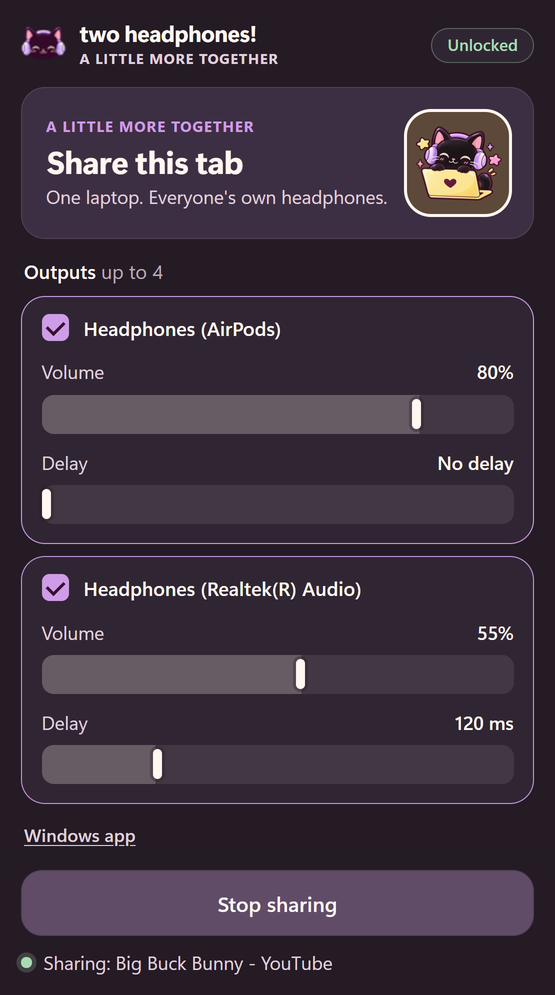
Bluetooth a little behind? Bluetooth headphones play a fraction of a second late. Move the Delay slider up on the wired pair until lips and voices line up for both of you.
Limits: it shares one Chrome tab, not sounds from Android apps or other windows. Some streaming services protect their audio, and a protected tab may play silently. And two Bluetooth pairs at once depends on your Chromebook’s Bluetooth chip, which varies by model, so use the free shares to check before buying.
Method 3: Bluetooth on its own (and why it usually doesn’t work)
You can pair two pairs of Bluetooth headphones with a Chromebook, but ChromeOS sends sound to whichever one you select in Quick Settings → audio. There’s no option to play to both. Some headphone brands can share audio between two of their own models, but those features are built around the brand’s own phones and tablets, so don’t count on them from a Chromebook.
On a Mac or Windows PC instead?
The extension works the same in Chrome on any computer. But both systems also have options for all of the computer’s sound, not just one tab:
- Mac: (full guide: two headphones on a Mac) open Audio MIDI Setup (in Applications → Utilities), click + → Create Multi-Output Device, tick both headphones, and tick Drift Correction for every device except the first. Then choose the Multi-Output Device as your sound output. The keyboard volume keys don’t control it, so set each pair’s volume first.
- Windows: see how to use two headphones on one PC. The Two Headphones Windows app shares everything the PC plays, including games and apps.
Troubleshooting
My headphones don’t appear in the extension
Chrome lists a device only after it’s connected and the one-time permission is granted. Reconnect the headphones, close and reopen the popup, and click Find my headphones again if it’s shown.
One pair is silent
Make sure it’s ticked and its volume is above zero. If it’s the second Bluetooth pair, your Chromebook may only stream to one Bluetooth device at a time: pair one Bluetooth and one wired or USB-C pair instead.
The sound echoes or is out of sync
Add delay to the pair that plays first (usually the wired one), 10 ms at a time. If you’re using speakers in the same room, a small delay difference makes an echo, so line them up the same way.
Sharing one pair of earbuds, one bud each? Turn on Mono audio in Settings → Accessibility → Audio and captions so both of you hear dialogue and music that’s mixed to one side.
