
Two people, one MacBook, one film: the obvious problem is that macOS plays sound through one output at a time. The good news is that, unlike a Chromebook, a Mac has a free built-in way around that, and it works for two pairs of AirPods, any other Bluetooth headphones, or a mix with wired ones. Here are the three options, from simplest to most flexible, and how to fix the one problem the built-in method has.
Which method should you use?
| Method | Headphones | Separate volumes | Fixes Bluetooth lag | Cost |
|---|---|---|---|---|
| Headphone splitter | Two wired | No | Not needed | A few dollars |
| Multi-Output Device | Any mix | Yes (in Audio MIDI Setup) | No | Free |
| Chrome extension | Any mix, up to 4 | Yes | Yes (delay per pair) | 3 free shares, then $20 |
Method 1: Multi-Output Device (built into macOS)
Audio MIDI Setup is a utility that ships with every Mac. It can merge several outputs into one “device” that plays everything at once. It works with any brand of headphones (AirPods, Sony, Bose, cheap Bluetooth earbuds, wired or USB), not just Apple’s. Don’t confuse it with Apple’s Audio Sharing, which only pairs two sets of AirPods or Beats from an iPhone, iPad or Apple TV.
- Connect both headphones. Pair Bluetooth ones in System Settings → Bluetooth; plug in wired or USB-C ones.
- Open Audio MIDI Setup: press Cmd + Space, type “Audio MIDI Setup” and press Return (it lives in Applications → Utilities).
- Click the + button at the bottom left and choose Create Multi-Output Device.
- In the list on the right, tick both headphones. Set the Primary Device to the wired pair or the Mac’s built-in output if you’re using one; the others follow its clock.
- Tick Drift Correction for every device except the primary one.
- Open System Settings → Sound → Output and choose Multi-Output Device. Everything the Mac plays now goes to both pairs.
Setting the volume: the keyboard volume keys and the menu bar slider don’t work with a Multi-Output Device. Set each pair’s level before you start: in Audio MIDI Setup, select each headphone in the sidebar and drag its volume on the Output tab, or use the headphones’ own buttons.
When you’re done, switch the output back to your speakers or one pair of headphones in System Settings → Sound.
The catch: Bluetooth and wired won’t line up
Bluetooth headphones (AirPods included) play noticeably later than wired ones. Drift Correction keeps devices from slowly drifting apart, but it can’t delay the faster pair to match the slower one, and the Multi-Output Device has no delay setting. With one wired and one Bluetooth pair, one person hears speech a beat before the lips move.
Two ways around it: use two Bluetooth pairs (they lag by similar amounts), or, for anything you watch in a browser, use an extension that lets you delay the faster pair.
Method 2: a Chrome extension (with delay per pair)
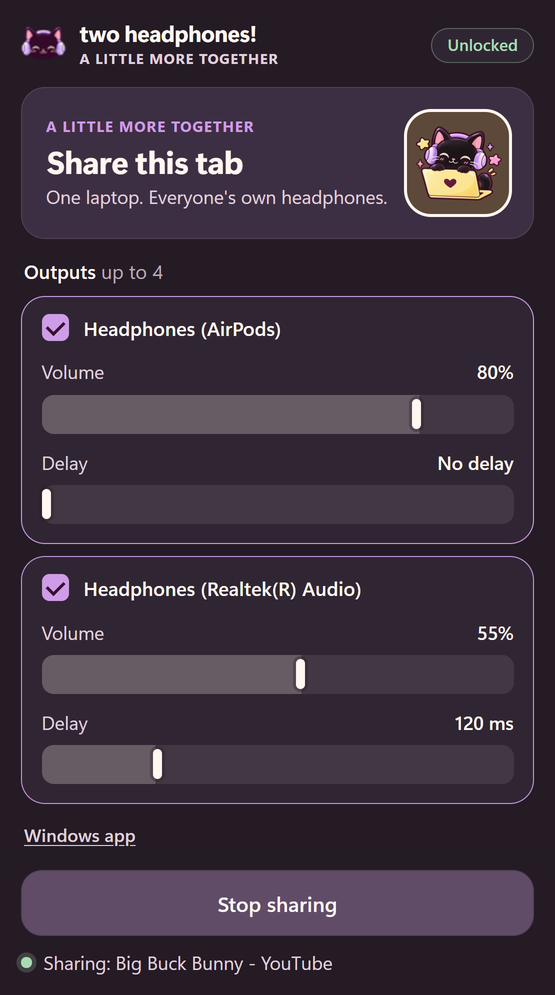
For YouTube, Twitch, courses and most video sites in the browser, the Two Headphones Chrome extension plays a tab’s sound on up to four outputs at once, each with its own volume and delay, without changing your Mac’s sound settings.
- Install it from the Chrome Web Store and pin it (puzzle icon → pin Two Headphones).
- Click the cat icon, then Find my headphones and Allow. Chrome only lists device names after this one-time permission; the microphone itself is never used.
- Open the tab you want to watch, click the cat, tick both headphones and set each volume.
- Press Share audio. If the wired pair is ahead, raise its Delay until both of you hear the same moment.
More detail in our guide to the Chrome extension.
Share audio on a MacBook: what works and what doesn’t
On an iPhone, “Share Audio” sends one video to two sets of AirPods with a tap. macOS doesn’t have that button, and holding a second AirPods case near a MacBook does nothing. On a Mac you share audio one of these ways:
- Everything the Mac plays, two pairs: the Multi-Output Device above.
- A browser video, two to four pairs, kept in sync: the Chrome extension in Method 2.
- Two wired pairs: a splitter (Method 3).
- Your Mac’s sound in a video call: that’s a different feature. Tick Share sound when you share your screen in Zoom, or Include computer sound in Teams.
Watching on an iPhone or iPad instead? See two headphones on an iPhone, iPad or Android.
Method 3: a headphone splitter
If both pairs are wired and your Mac has a headphone jack (MacBook Air and Pro do), a 3.5 mm splitter is the fastest fix: plug it in, plug both headphones into it, done. Both pairs share one volume, and it can’t help with AirPods or other Bluetooth headphones. See our splitter guide for what to buy.
Troubleshooting
The Multi-Output Device has no sound on one pair
Check that pair is ticked in the Multi-Output Device and its own volume isn’t at zero in Audio MIDI Setup. If it’s Bluetooth, disconnect and reconnect it, then reselect the Multi-Output Device as the output.
Crackling or dropouts
Devices running at different sample rates can crackle. In Audio MIDI Setup, set both headphones (and the Multi-Output Device) to the same rate, usually 48,000 Hz, and make sure Drift Correction is on for the non-primary pair.
AirPods switch to “AirPods (Hands-Free)” and sound bad
Using the AirPods microphone switches them to a low-quality mode. In System Settings → Sound → Input, choose the Mac’s built-in microphone instead.
On a Chromebook instead? ChromeOS has no Multi-Output Device. See two headphones on a Chromebook. On Windows, see two headphones on one PC.
