
Chrome plays sound through whatever single output your computer is set to. That’s fine alone, but not when two people want to watch the same video on one laptop with their own headphones. A Chrome extension can fix that without touching your system settings: it takes the sound of one tab and plays it on several headphones or speakers at the same time.
What the Two Headphones extension does
- Plays one tab on up to four outputs at once: wired headphones, USB headsets, AirPods and other Bluetooth headphones, or speakers.
- A volume for each person, so a quiet pair and a loud pair both sound right.
- A delay for each pair (0 to 500 ms) to line up Bluetooth headphones, which play later than wired ones.
- Keeps playing when you close the popup, and the icon shows ON while it’s sharing.
- Works on Mac, Windows and Chromebook, anywhere Chrome runs, with nothing else to install.
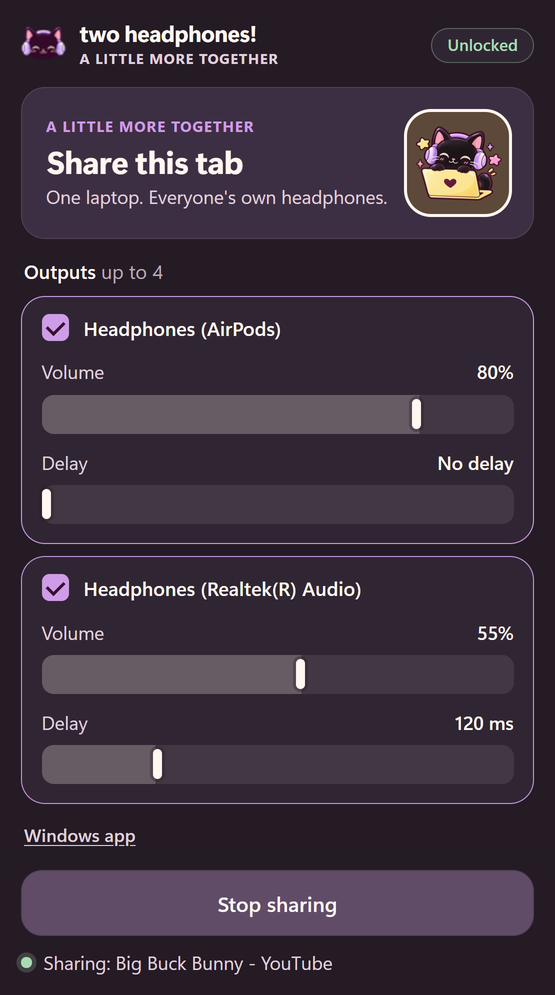
How to set it up (2 minutes)
- Connect the headphones. Plug in wired or USB ones and pair Bluetooth ones in your computer’s Bluetooth settings.
- Add the extension from the Chrome Web Store, then pin it: click the puzzle icon at the top right of Chrome and pin Two Headphones.
- Allow the one-time permission. Click the cat icon, then Find my headphones and Allow. Chrome only shows device names after this.
- Open the tab you want to share and click the cat icon. Tick each pair of headphones.
- Set each volume, then press Share audio.
- If one pair is ahead, raise the Delay on that pair (usually the wired one) until both of you hear the same moment.
To stop, click the cat icon and press Stop sharing, or just close the tab.
Extension or Windows app: which do you need?
| Chrome extension | Windows app | |
|---|---|---|
| Works on | Mac, Windows, Chromebook | Windows 10 & 11 |
| Shares | One Chrome tab | Everything the PC plays |
| Outputs | Up to 4 | Up to 4 |
| Volume and delay per pair | Yes | Yes |
| Install | From the Chrome Web Store | Portable .exe |
| Price | 3 free shares, then $20 once for both | |
Most people watching YouTube, a course or a streaming site in the browser only need the extension. If you want game audio, Spotify or any desktop app on two headphones, use the Windows app (how it works).
Privacy: what the extension can and can’t see
- The tab’s sound is processed only inside your browser. It isn’t recorded, saved or sent anywhere.
- The microphone permission is used only to list your headphones; the microphone is never turned on.
- It only captures the tab you choose, and only after you press Share audio.
- Unlocking sends the purchase email you type to twoheadphones.com to check your purchase. Details are in the privacy policy.
Limits to know
- One tab at a time. Sounds from other tabs, apps or notifications aren’t shared.
- Protected streams. Some streaming services block audio capture, and a protected tab may play silently. Use your free shares to check yours.
- Two Bluetooth pairs depend on your computer’s Bluetooth hardware. One Bluetooth plus one wired or USB pair is the most reliable combination.
- Made for Google Chrome. Other Chromium browsers (Edge, Brave) can install Chrome Web Store extensions, but this one is only tested in Chrome.
Troubleshooting
My headphones aren’t listed
Make sure they’re connected to the computer first, then close and reopen the popup. If it asks to find your headphones, grant the permission again.
“Couldn’t capture this tab’s sound”
Reload the tab and try again. Chrome won’t share sound from its own pages (like the new-tab page or settings), so open a normal website.
Sound echoes or is out of sync
Add delay to whichever pair plays first, 10 ms at a time. With speakers in the same room, matching them closely removes the echo.
Setting this up on a specific computer? See the step-by-step for Mac and Chromebook.
