
Watching a film on a laptop with someone, gaming side by side, or listening along on a flight: you want the same sound in two pairs of headphones. Windows doesn’t do this on its own. It sends audio to one default output at a time, and every other pair stays silent.
This guide covers every practical way around that, from cheapest to easiest. It also covers the problems you hit after setup: one person louder than the other, one pair lagging behind, and sound that stops after a while.
Why Windows only plays through one pair
Every pair of headphones you plug in or pair shows up in Windows as its own audio endpoint. Apps such as your browser, Netflix or a game send their sound to whichever endpoint is set as the default. Windows has no built-in “play to all” switch. The Volume mixer can send different apps to different devices, but not one app to two.
So every method below does the same thing in a different way: it copies the sound from one output to another. A splitter does it electrically. Stereo Mix and the apps do it in software.
The exception: Windows 11 Shared audio (LE Audio)
Microsoft has started rolling out Shared audio in Windows 11. It plays the same sound to two Bluetooth headsets at once, each with its own volume, from Quick settings → Shared audio. It only works when the PC and both headsets support Bluetooth LE Audio. At launch it’s limited to select Copilot+ PCs with Snapdragon X processors, and it’s arriving gradually through updates. If you have that setup, try it first. Everyone else, including anyone with wired, USB or older Bluetooth headphones, needs one of the methods below.
Before you start: check what you have
- Two wired headphones with 3.5 mm plugs: a splitter will do. Skip to method 1.
- A desktop with front and back jacks: you may not need to buy anything. See method 2.
- USB headsets, Bluetooth headphones or AirPods: you need software (method 3, 4 or 5).
- One wired, one Bluetooth: software, plus a delay adjustment so you hear things at the same moment.
To see your outputs, open Settings → System → Sound and look under Output. Every device listed there can be used as a second pair.
Method 1: A headphone splitter (wired only)
A 3.5 mm Y-splitter turns one headphone jack into two (which one to buy: headphone splitter for PC). Plug it into your PC, plug both headphones into the splitter, done. No setup, no software, and both pairs are perfectly in sync because they’re literally on the same wire.
- Good for: two wired headphones with standard 3.5 mm plugs.
- Laptops with only USB-C: add a USB-C to 3.5 mm adapter before the splitter.
- Limits: both pairs share one volume. It does nothing for USB or Bluetooth headphones. Headset microphones generally won’t both work through a splitter.
If one person hears much less than the other on a splitter, their headphones probably have a higher impedance or lower sensitivity. A splitter can’t fix that. Only separate volume controls can.
Method 2: Use the front and back jacks (desktops)
Many desktop PCs have a headphone jack on the front panel and audio jacks on the back. By default, plugging into the front mutes the back. On most Realtek-based PCs you can switch that off in Realtek Audio Console → Device advanced settings, so both jacks play the same sound. Full steps: how to use the front and back jacks at the same time.
This shares one audio chip, so both pairs are in sync. Volumes are often shared too, depending on the driver.
Method 3: Stereo Mix and “Listen to this device” (free)
Stereo Mix is a hidden recording device that captures whatever your PC is playing. Windows can then “listen” to it through a second output, which copies your sound to a second pair of headphones.
- Set headphone pair 1 as your default output in Settings → System → Sound.
- Scroll down and open More sound settings, then go to the Recording tab.
- Right-click an empty area, tick Show Disabled Devices, then right-click Stereo Mix → Enable.
- Double-click Stereo Mix, open the Listen tab, tick Listen to this device, and pick headphone pair 2 under Playback through this device.
- Click Apply. Both pairs now play the same sound.
On Windows 10 the classic Sound window is under Control Panel → Sound, or right-click the speaker icon and choose Sounds. The rest is identical.
- Good for: one pair on your PC’s headphone jack plus a second pair of any type (USB or Bluetooth), at no cost.
- Limits: Stereo Mix only exists if your audio driver provides it, and many laptops don’t have it. It only captures your built-in audio chip, so the first pair must be on the headphone jack or built-in speakers. It can’t copy from one Bluetooth or USB pair to another. The second pair runs slightly behind, and there’s no setting to fix that. Two devices maximum. See Stereo Mix on Windows 11 if it’s missing.
Method 4: Voicemeeter (free, more setup)
Voicemeeter is a free virtual mixer. Windows sends sound into Voicemeeter, and Voicemeeter sends it out to two or more hardware outputs (A1, A2…), each with its own fader. It works on any PC, Stereo Mix or not, and can line up devices with per-output delay in the Banana and Potato editions. The trade-off is setup time and a mixer that must stay open. Step by step: Voicemeeter for two headphones, or compare simpler Voicemeeter alternatives.
Method 5: An app built for sharing audio
Dedicated apps capture your PC’s sound once and play it to every device you pick. There’s no driver lottery and no mixer to configure.
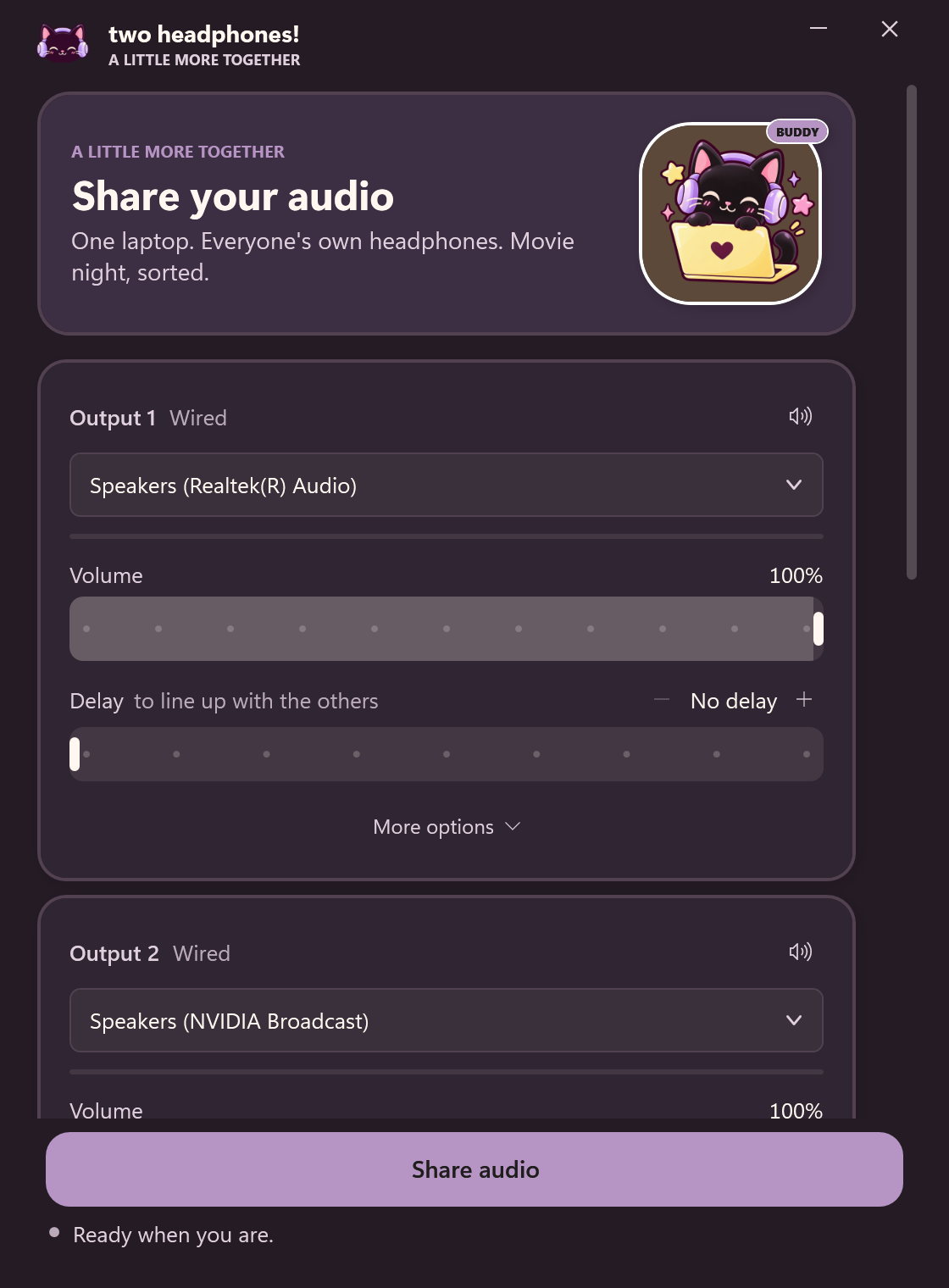
- Open Two Headphones and pick the first pair of headphones.
- Click Add another output and pick the second pair (up to four in total). Not sure which is which? Play test tone beeps on that pair only.
- Set each person’s volume, and optionally a volume limit they can’t turn past. If one pair sounds behind, nudge the other pair’s Delay in 10 ms steps.
- Press Share your audio. Anything your PC plays now goes to every pair.
Which method should you use?
| Splitter | Front + back jacks | Stereo Mix | Voicemeeter | Two Headphones | |
|---|---|---|---|---|---|
| Cost | ~$5 | Free | Free | Donationware | $10 once |
| USB / Bluetooth | No | No | Second pair only | Yes | Yes |
| Max headphones | 2 per jack | 2 | 2 | 2–5 | 4 |
| Separate volumes | No | Driver-dependent | Partly | Yes | Yes |
| Delay control | Not needed | Not needed | No | Banana / Potato | Yes |
| Works on every PC | Needs a jack | Desktops, Realtek | Driver-dependent | Yes | Yes |
| Setup time | Seconds | 2 minutes | 5 minutes | 15+ minutes | One click |
Short version: two wired headphones and a shared volume is fine? Buy a splitter. Anything else, especially two Bluetooth headphones, needs software. Pick Stereo Mix if your PC has it and two devices are enough, or an app if you want it to just work.
Troubleshooting
One person’s headphones are much quieter
Different headphones need different amounts of power. With software methods, turn the louder pair down rather than the quieter one up, so neither clips. With a splitter there’s no fix except using similar headphones.
One pair is behind the other
Bluetooth is usually a fraction of a second behind wired. Delay the faster device until speech lines up. Watching someone talk on screen is the easiest test. Stereo Mix can’t do this; Voicemeeter Banana/Potato and Two Headphones can. More in fixing Bluetooth audio delay.
The second pair is silent in one app only
Some apps play audio in exclusive mode, which bypasses the Windows mixer, so nothing can copy it. Open the first device’s Properties → Advanced and untick Allow applications to take exclusive control. Some protected streaming apps also block audio capture. The browser version usually works.
Crackling or dropouts on the second pair
Set both devices to the same format (Properties → Advanced → Default Format, e.g. 48000 Hz), close other heavy audio software, and for Bluetooth keep the headphones close to the PC.
AirPods or earbuds sound terrible
Bluetooth headphones appear twice in Windows: as “Headphones” (stereo) and “Headset” or “Hands-Free” (call mode). Always pick the stereo entry. If any app is using the headphones’ microphone, Windows switches them into the low-quality call mode.