
Voicemeeter is one of the most-used audio tools on Windows, and one of the most confusing the first time you open it. It’s a full virtual mixing desk: inputs, outputs, buses, virtual devices. Many people only need one small part of that. This guide matches each common Voicemeeter job to the simplest tool that does it, so you can skip the mixing desk when you don’t need it.
What do you actually use Voicemeeter for?
| Your job | Simplest alternative | Cost |
|---|---|---|
| Same sound in two (or more) headphones / speakers | Two Headphones | $10 once |
| Different apps on different devices | Windows Volume mixer | Free, built in |
| Send one app’s sound into another (e.g. into OBS or a call) | VB-Cable | Donationware |
| Quickly switch speakers ↔ headphones | SoundSwitch | Free, open source |
| Per-app routing with a nicer interface | CheVolume | Paid |
| Mix two microphones, streaming, EQ, recording | Keep Voicemeeter | Donationware |
1. Two Headphones: same sound on several devices
The most common reason people install Voicemeeter is to hear their PC on two headphones at once: a film on a laptop, a friend on the couch, wired plus Bluetooth. Two Headphones does only that, in one window.
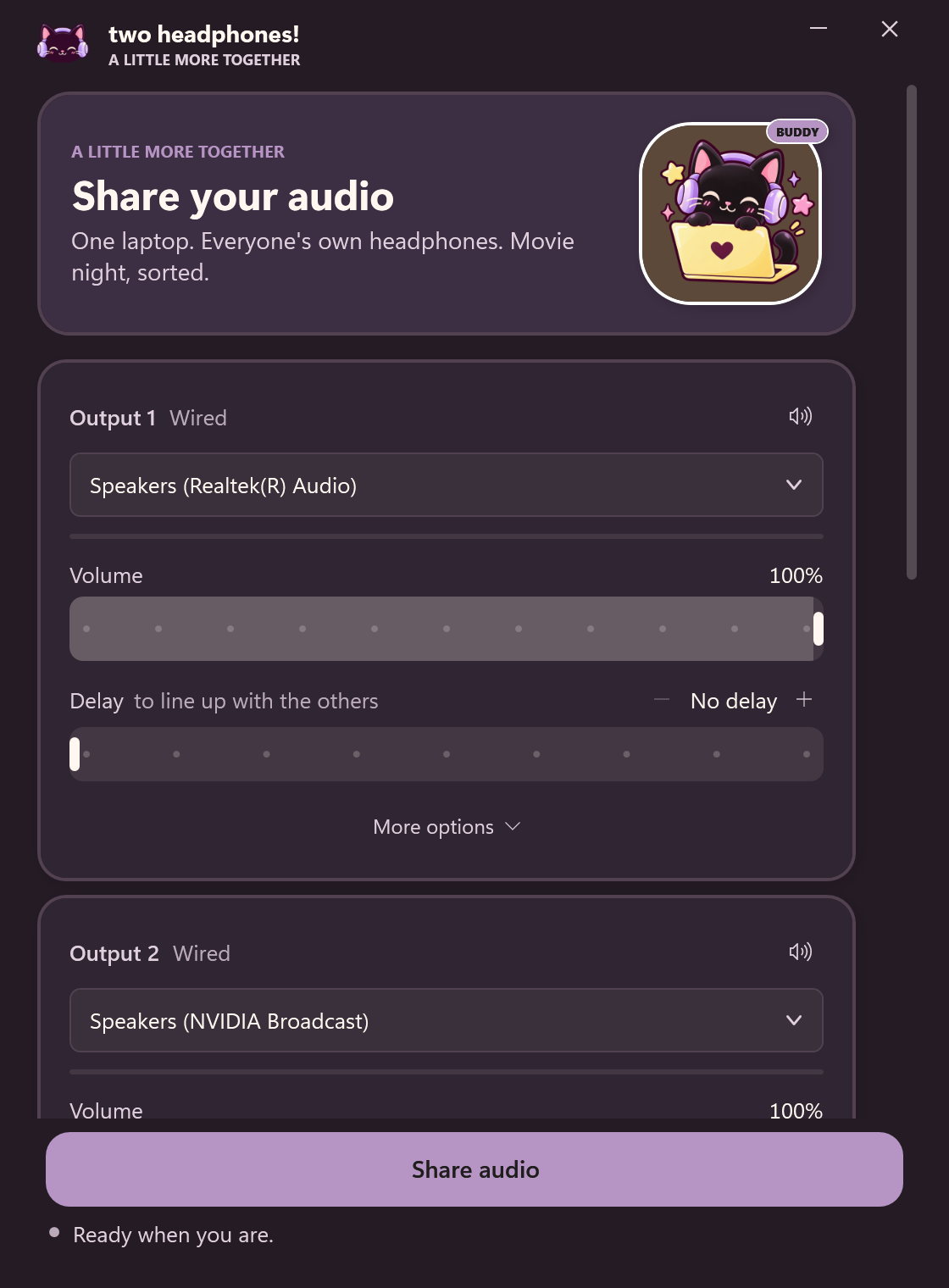
- Up to four outputs: wired, USB or Bluetooth, any mix.
- Per-device volume, volume limit and delay (10 ms steps), plus Mono for single earbuds.
- Stays in sync over long films by correcting the drift between devices.
- Nothing to undo: your normal sound settings come back when you stop sharing.
It doesn’t mix microphones or route individual apps. That’s where Voicemeeter or the tools below come in.
2. Windows Volume mixer: different apps on different devices
Want a game in your headset and music on your speakers? You don’t need anything extra. Windows 11: Settings → System → Sound → Volume mixer, then set each app’s Output device. Windows 10: Settings → System → Sound → App volume and device preferences. It routes each app to one device; it won’t copy one app to two. Details in multiple audio outputs in Windows.
3. VB-Cable: a single virtual audio cable
VB-Cable, from the same developer as Voicemeeter, adds one virtual playback device (“CABLE Input”) and one virtual recording device (“CABLE Output”). Anything played into the cable can be picked up as a microphone by another app. That’s useful for sending music into a voice call, or one app’s sound into OBS. It doesn’t play to two outputs or give you faders, so it’s a building block rather than a replacement for the whole mixer.
4. SoundSwitch: switch devices with a hotkey
If you mostly use Voicemeeter to flip between speakers and headphones, SoundSwitch is far simpler: a free, open-source tray app that switches the default output (and microphone) with a keyboard shortcut. It switches between devices; it doesn’t play to two at once.
5. CheVolume: per-app routing with more control
CheVolume is a paid tool focused on routing individual apps to different devices and controlling their volumes, with more convenience than the Windows Volume mixer, such as remembering rules per app.
6. Audio Router: the old free option
Audio Router is a free, open-source tool that can route each app’s sound to a chosen device, and duplicate it to another. Development stopped years ago, so expect rough edges with newer apps and Windows versions. Still worth a look if you need per-app duplication for free.
7. Windows 11 Shared audio (LE Audio only)
Microsoft has started rolling out Shared audio in Windows 11: it plays the same sound to two Bluetooth headsets at once, each with its own volume, from Quick settings → Shared audio. The catch is compatibility. It needs Bluetooth LE Audio on the PC and on both headsets, and at launch it’s limited to select Copilot+ PCs with Snapdragon X processors, arriving gradually through updates. Most current PCs and headphones, including wired ones, aren’t covered.
When to keep Voicemeeter
- You need to mix two or more microphones into one input. See two headsets on one PC.
- You stream or record and want separate buses for game, chat and music.
- You want EQ, compression or ASIO for music production.
Already using it for two headphones and it works? Great. Here’s how to set Voicemeeter up for two headphones properly, including the crackle and delay fixes.
Moving away from Voicemeeter? Set your normal speakers or headphones back as the Windows default (and in Discord or games) before uninstalling, so you don’t end up with no sound.