
“Multiple audio outputs” can mean two different things, and Windows handles them very differently:
- The same sound on several devices: a film playing in two pairs of headphones, music on your speakers and a Bluetooth speaker together, or sound from both monitors.
- Different apps on different devices: a game in your headset while a video plays on the speakers.
Windows does the second one out of the box. The first one needs a workaround. This guide covers both, with exact steps for Windows 11 and Windows 10, a comparison of every option, and fixes for the problems that usually come up.
How Windows decides where sound goes
Every speaker, headset, monitor and pair of Bluetooth headphones is a separate output device (an “endpoint”) in Windows. You’ll find the list in Settings → System → Sound → Output. When an app plays sound, Windows sends it to the default output unless the app or Windows has been told to use another one.
Windows actually keeps two defaults: the default device for normal audio, and the default communications device used by calling apps like Teams and Discord. You can see and change both in the classic Sound window (More sound settings → Playback, right-click a device). That’s why a call sometimes rings in your headset while music keeps playing on your speakers.
There’s no built-in option to play one stream on two outputs. Everything that does it, Stereo Mix included, works by capturing what’s playing and replaying it somewhere else.
The exception: Windows 11 Shared audio (LE Audio)
Microsoft has started rolling out Shared audio in Windows 11. It plays the same sound to two Bluetooth headsets at once, each with its own volume, from Quick settings → Shared audio. It only works when the PC and both headsets support Bluetooth LE Audio. At launch it’s limited to select Copilot+ PCs with Snapdragon X processors, and it’s arriving gradually through updates. If you have that setup, try it first. Everyone else, including anyone with wired, USB or older Bluetooth headphones, needs one of the methods below.
Send different apps to different devices (built in)
Windows 11
- Start playing sound in the apps you want to route.
- Open Settings → System → Sound → Volume mixer.
- Under Apps, expand each app and choose its Output device.
Windows 10
- Open Settings → System → Sound.
- Click App volume and device preferences.
- Set the Output for each app listed.
Some apps, browsers especially, only pick up the change after a restart. Use the Reset button on the same page to send everything back to the defaults.
This routes each app to one device. It won’t copy a single app’s sound to two devices. For that, keep reading.
Play the same sound on two devices: Stereo Mix
Stereo Mix captures everything your PC plays, and “Listen to this device” replays it through a second output.
- Make device 1 your default output.
- Go to Settings → System → Sound → More sound settings → Recording (Windows 10: right-click the speaker icon → Sounds → Recording).
- Right-click → Show Disabled Devices → right-click Stereo Mix → Enable.
- Double-click Stereo Mix → Listen → tick Listen to this device → choose device 2 → Apply.
It’s free, but it covers only two outputs, the second device lags slightly with no way to adjust it, and plenty of PCs don’t have Stereo Mix at all. It also only captures your built-in audio chip, so device 1 must be your built-in speakers or headphone jack. It can’t copy from a USB headset, Bluetooth headphones or an HDMI monitor. See how to enable Stereo Mix and fix it missing.
Play the same sound on three or more devices: Voicemeeter
Voicemeeter is a free virtual mixer from VB-Audio. You set Windows to output to Voicemeeter, then switch on its hardware outputs (A1, A2, A3…) for each device. The standard edition has two hardware outputs, Banana has three, and Potato has five. It works on PCs without Stereo Mix and gives each output its own fader. Expect some setup time, buffer tweaking if you hear crackles, and a mixer that has to run whenever you want sound. Step by step: Voicemeeter for two headphones.
The simple way: an app built for it
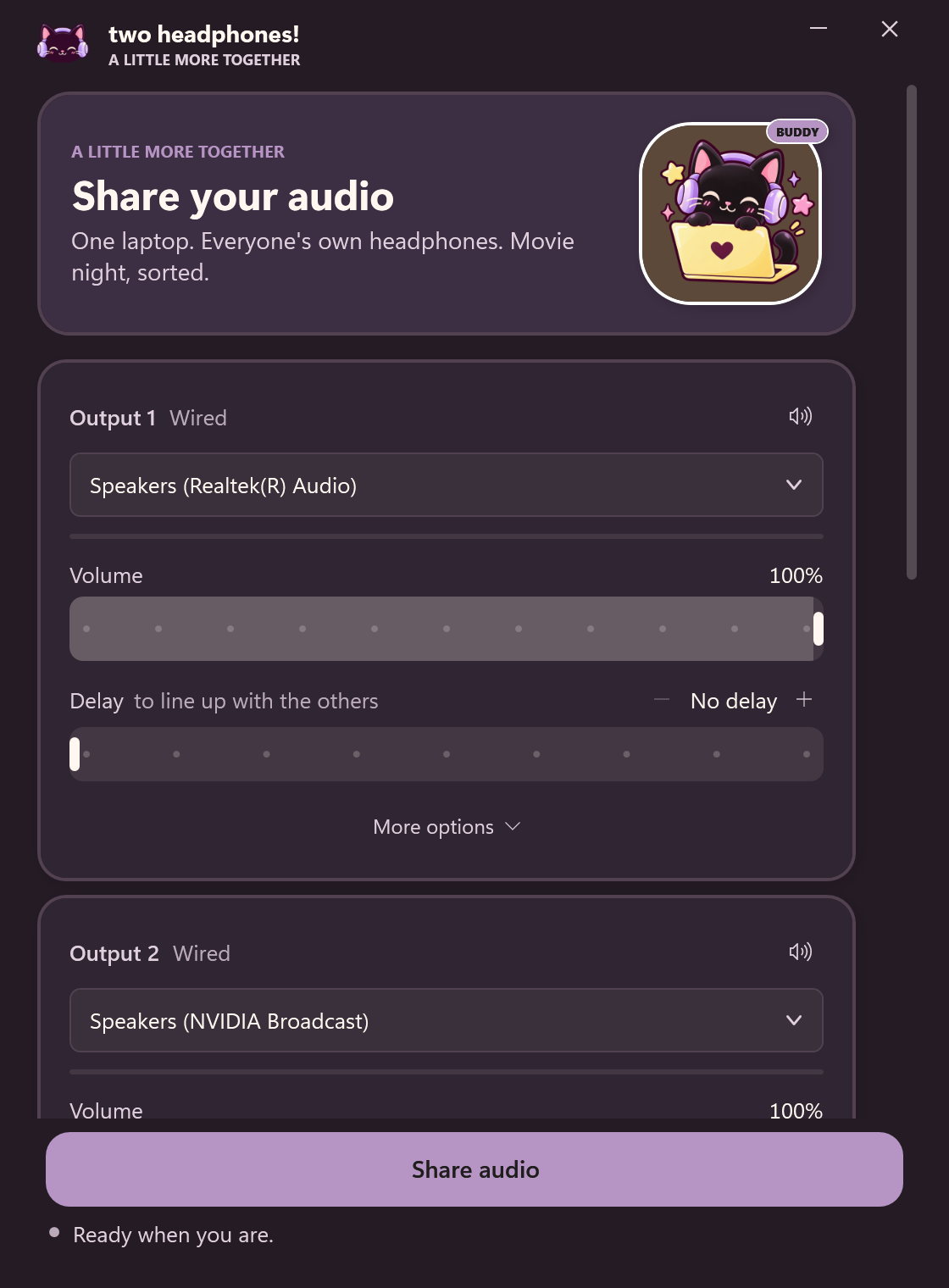
Two Headphones captures your PC’s sound once and plays it to up to four outputs: headphones, speakers, monitors, wired or Bluetooth. You pick the devices, set each volume, slide a delay if one is behind, and press Share your audio. There’s no virtual device to install, and your normal sound settings come back the moment you stop.
Comparison
| Volume mixer | Stereo Mix | Voicemeeter | Two Headphones | |
|---|---|---|---|---|
| Same sound on several devices | No | Yes (2) | Yes (2–5) | Yes (up to 4) |
| Different apps per device | Yes | No | Yes | No |
| Needs a specific driver | No | Yes | No | No |
| Bluetooth / USB as main device | Yes | No | Yes | Yes |
| Per-device volume | Per app | Partly | Yes | Yes |
| Per-device delay | — | No | Banana / Potato | Yes |
| Stays in sync over time | — | Can drift | Can drift | Drift-corrected |
| Cost | Free | Free | Donationware | $10 once |
Troubleshooting multiple outputs
The second device is silent
- Check the device isn’t muted and its volume isn’t at zero in Settings → System → Sound.
- Untick Allow applications to take exclusive control in the main device’s Properties → Advanced. Exclusive-mode audio bypasses the mixer, so it can’t be copied.
- If it’s silent in only one streaming app, that app may block capture. Try the browser version.
Echo between two speakers in the same room
One device plays later than the other. Delay the earlier one until the double hit disappears. Stereo Mix can’t do this; the other tools can.
Crackling
Set every device to the same sample rate (Properties → Advanced → Default Format, e.g. 48000 Hz). In Voicemeeter, raise the buffer size.
Sound slowly falls out of sync during a film
That’s clock drift: no two audio devices run at exactly the same speed. Reconnecting resets it with simple tools. Two Headphones corrects it continuously.
Common setups
- Two people, two headphones: use two headphones on one PC.
- Two Bluetooth headphones: connect two Bluetooth headphones to a PC.
- Two monitors with speakers: get sound from both monitors.
- Two Bluetooth speakers: play two Bluetooth speakers at once.
- Front and back jacks on a desktop: use both audio jacks at once.