
Two people, one laptop, two pairs of AirPods or Bluetooth headphones. It feels like it should just work, and Windows will happily connect both pairs. Then it plays sound through only one of them. This guide gets both playing, keeps them in sync, and fixes the dropouts and quality problems that come with running two Bluetooth headphones at once.
Can Windows connect two Bluetooth headphones at once?
Connecting: yes. A Windows PC can hold several Bluetooth audio devices connected at the same time. Playing: not by default. Each pair is a separate output, and Windows sends sound to just the default one. You need something that copies the sound to the second pair: Stereo Mix (built into some drivers) or an app.
Don’t confuse this with multipoint. Multipoint headphones connect to two sources, like your phone and your laptop. You want the opposite: one source, two pairs of headphones.
The exception: Windows 11 Shared audio (LE Audio)
Microsoft has started rolling out Shared audio in Windows 11. It plays the same sound to two Bluetooth headsets at once, each with its own volume, from Quick settings → Shared audio. It only works when the PC and both headsets support Bluetooth LE Audio. At launch it’s limited to select Copilot+ PCs with Snapdragon X processors, and it’s arriving gradually through updates. If you have that setup, try it first. Everyone else, including anyone with wired, USB or older Bluetooth headphones, follow the steps below.
Step 1: Pair both headphones
- Put headphone pair 1 in pairing mode. For AirPods, open the lid and hold the button on the case until the light flashes white.
- On Windows 11 open Settings → Bluetooth & devices → Add device → Bluetooth. On Windows 10: Settings → Devices → Bluetooth & other devices → Add Bluetooth or other device.
- Select the headphones and wait for Connected.
- Repeat for pair 2.
Both pairs should now show as connected, but sound only comes out of whichever is the default output in Settings → System → Sound.
Bluetooth headphones usually show up twice in sound settings: as Headphones (stereo) and as Headset or Hands-Free (phone-call mode, mono and low quality). Always pick the stereo Headphones entry for both pairs.
Step 2: Get sound in both pairs
Option A: Stereo Mix (only if one pair can be wired)
Stereo Mix is the usual free answer, but there’s a catch most guides skip: it only captures sound from your PC’s built-in audio chip. If both pairs are Bluetooth, the default output is Bluetooth and Stereo Mix hears nothing. It works for one wired pair on the headphone jack plus one Bluetooth pair:
- Plug the wired pair into the headphone jack and set it as the default output.
- Settings → System → Sound → More sound settings → Recording → right-click → Show Disabled Devices → enable Stereo Mix.
- Double-click Stereo Mix → Listen → tick Listen to this device → choose the Bluetooth pair → Apply.
Many laptops don’t offer Stereo Mix at all, because it’s a feature of the audio driver, not of Windows. It also can’t delay either pair, which matters for Bluetooth (see step 3). See Stereo Mix on Windows 11. For two Bluetooth pairs, use option B.
Option B: An app that plays to both
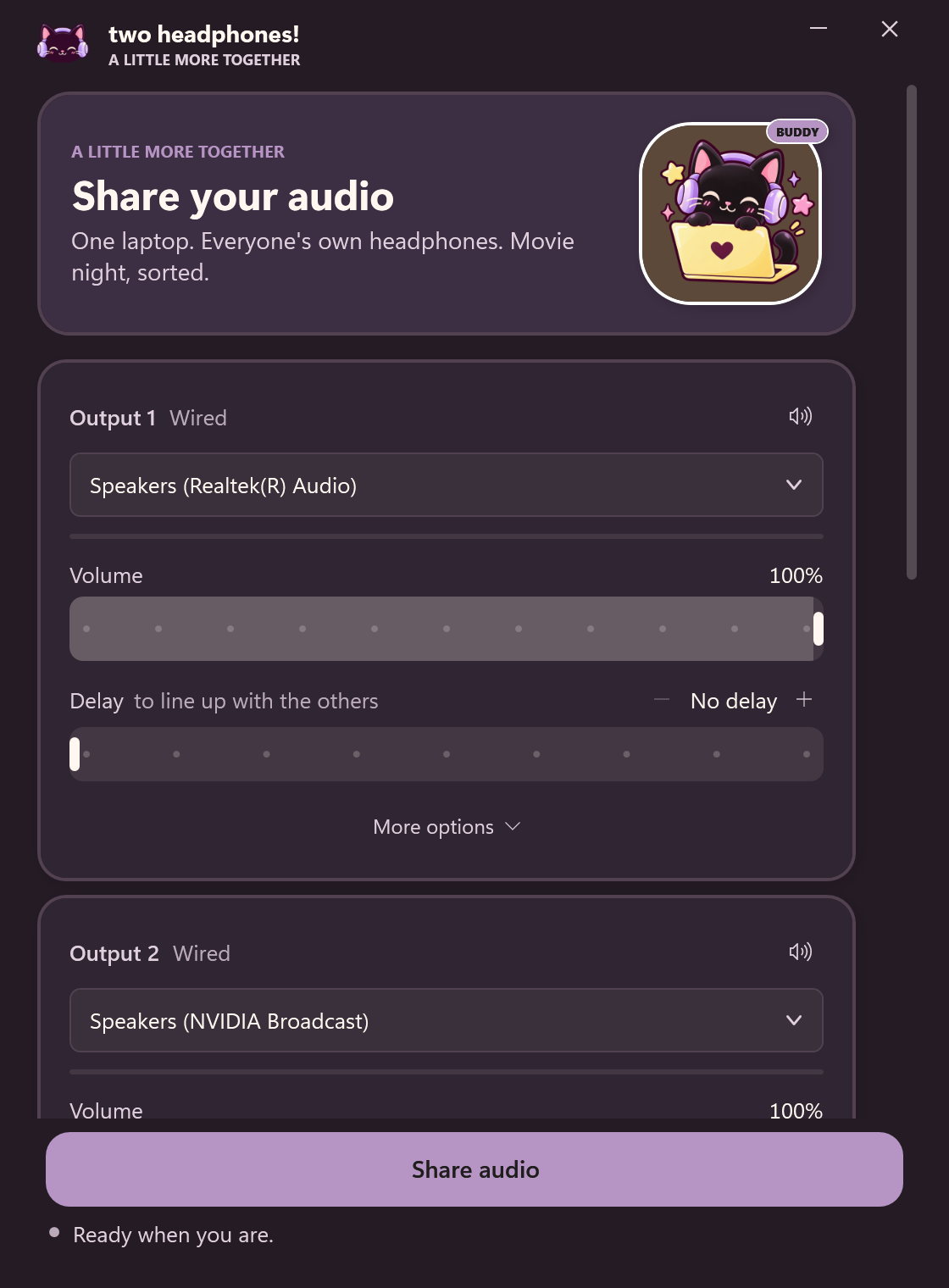
Two Headphones doesn’t rely on your driver. Pick both headphones, press Share your audio, and each pair gets its own volume and delay. If someone’s AirPods disconnect, say they go back in the case, the app keeps the other pair playing and picks the first pair up again when it reconnects.
Step 3: Keep both pairs in sync
Bluetooth headphones buffer sound before playing it, and different models buffer different amounts. Two different brands can be noticeably apart, and that’s very obvious when you’re sitting next to each other watching the same film.
- Play a video of someone talking.
- Take one earcup or bud off and listen to both pairs at once.
- Add delay to the pair that’s ahead, in small steps, until the voices merge.
Step 4: Make the connection stable
Two Bluetooth audio streams ask a lot of one Bluetooth chip. If you hear dropouts or stutters:
- Keep both headphones within a few metres of the laptop, with nothing big (or a body) blocking the line of sight.
- Move USB 3 flash drives and external drives away from the Bluetooth adapter. They’re known to interfere with 2.4 GHz.
- Busy 2.4 GHz Wi-Fi competes for the same airwaves. Using 5 GHz Wi-Fi on the laptop helps.
- Update the Bluetooth driver from your laptop maker’s support page, not just Windows Update.
- Older or very cheap built-in adapters can struggle with two pairs. A small USB Bluetooth 5 adapter often fixes it, or plug one pair in by cable instead.
Mixing Bluetooth and wired headphones
Wired headphones play almost instantly; Bluetooth headphones are typically a few hundred milliseconds behind. Mixing them creates an echo-like gap that you fix by delaying the wired pair. That works well and is often more reliable than two Bluetooth pairs on an old laptop. More on timing in fixing Bluetooth audio delay.
Troubleshooting
The second pair keeps disconnecting
Open Device Manager → Bluetooth, right-click your adapter → Properties → Power Management, and untick Allow the computer to turn off this device to save power. Then re-pair the headphones.
Sound quality dropped suddenly
An app (Discord, Teams, a game’s voice chat) started using the headphones’ microphone, which forces call mode. Set those apps’ input to your laptop’s built-in mic.
One pair is much louder
Bluetooth headphones have their own volume, synced with Windows in some models and separate in others. Set each pair’s volume in your sharing tool, and use the headphones’ own buttons to fine-tune.
Can my laptop handle it?
The quickest test is to try it. If both pairs play cleanly for a few minutes with you sitting where you’ll watch, you’re fine. If not, use a USB Bluetooth 5 adapter or make one pair wired.