AFTER YOU BUY · 2 MINUTES
Get Two Headphones running
Two steps: download the app, then share your sound. No installer, no account, no license key.
Download the app
Type the email you paid with. We check your purchase with Whop and give you the download, with a quick walkthrough for opening it.
Prefer to get it from Whop?
- Go to whop.com and sign in with the same email you paid with. Whop emails you a sign-in code, so you don’t need a password.
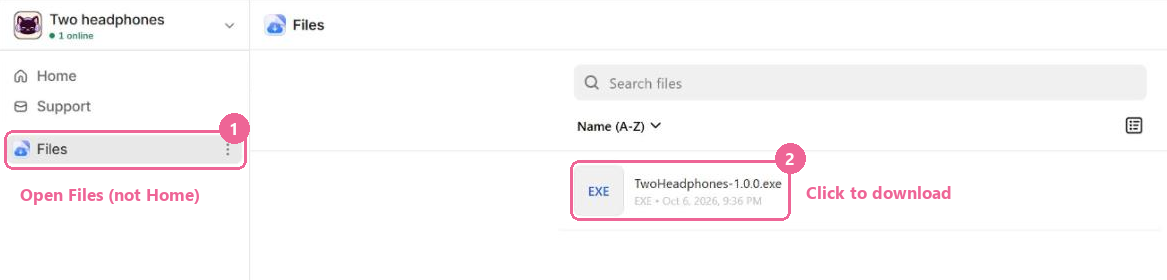
- In the far-left column, click the Two Headphones icon (the black cat in headphones).
- In the menu, click Files. (Home is just an empty feed; the app isn’t there.)
- Click the TwoHeadphones .exe file to download it.
Can’t see it? Check the email Whop sent after checkout (“Your purchase of Two Headphones”): its button opens the same page.
Share your sound
Connect the headphones first. Plug in wired ones, and pair Bluetooth ones in Windows Settings → Bluetooth & devices as usual. Then open Two Headphones.
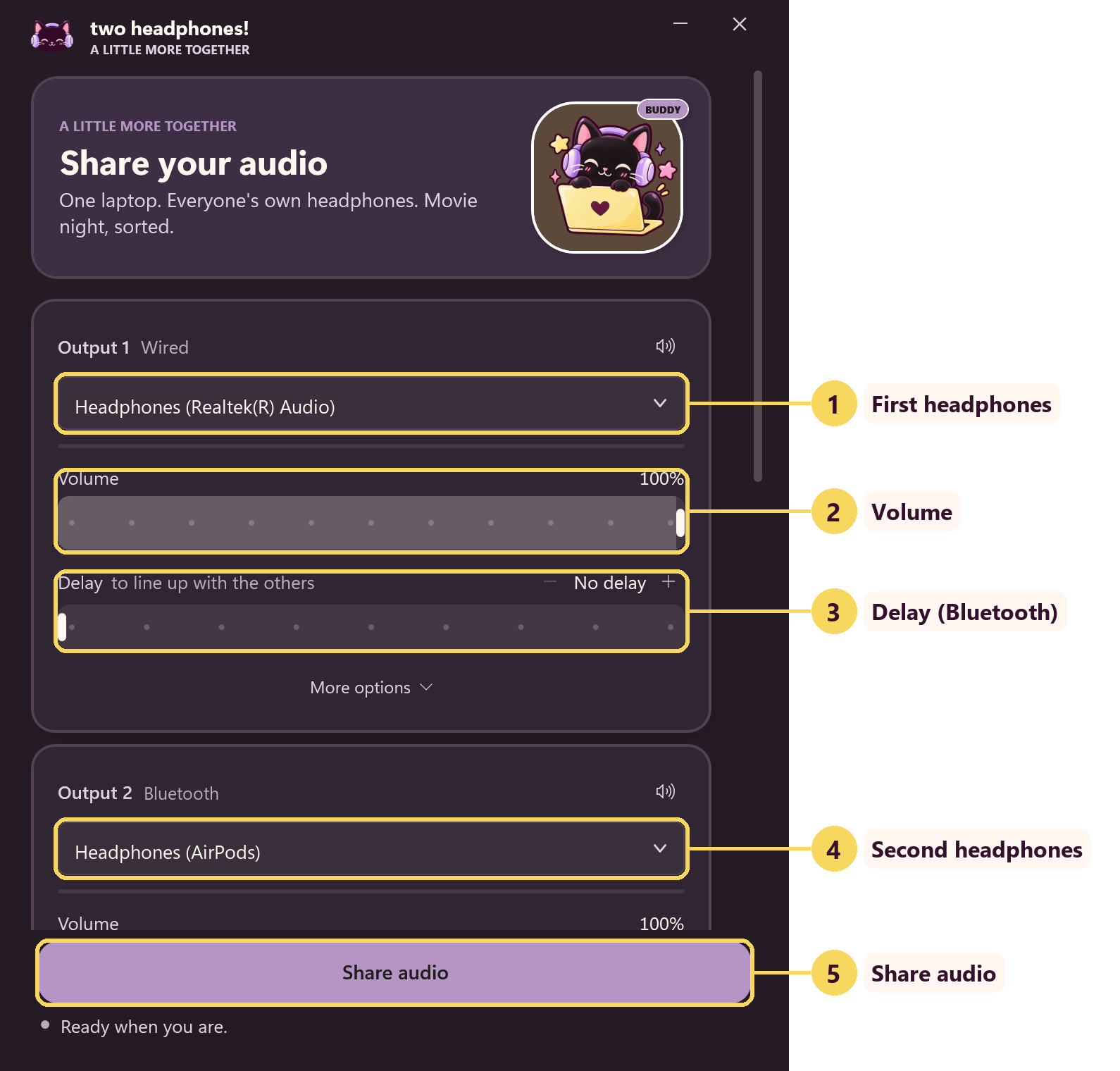
- First headphones: under Output 1, pick the first pair from the list.
- Volume: set how loud it is for that person.
- Delay: leave it at “No delay”. Only if a wired pair plays ahead of a Bluetooth pair, nudge the wired one up until they match.
- Second headphones: under Output 2, pick the second pair. Need three or four? Scroll down and click Add another output.
- Share audio: press it, then play anything (YouTube, Netflix in a browser, games, Spotify). Everyone hears it.
Tips: not sure which pair is which? Open More options and use Play test tone, which beeps one pair only. Press the button again to stop sharing. Closing the window keeps it running in the tray (bottom-right, near the clock); open the app again to bring the window back.
The Chrome extension (Mac, Chromebook, Windows)
Your purchase also includes the Chrome extension. It shares the sound of one Chrome tab (YouTube, Twitch, a course) instead of your whole PC, and works anywhere Chrome runs.
- Install it: open the Chrome Web Store page and click Add to Chrome. Then click the puzzle icon at the top right of Chrome and pin Two Headphones so the cat is always visible.
- One-time permission: click the cat, then Find my headphones and Allow. Chrome only shows headphone names after this; the microphone is never used.
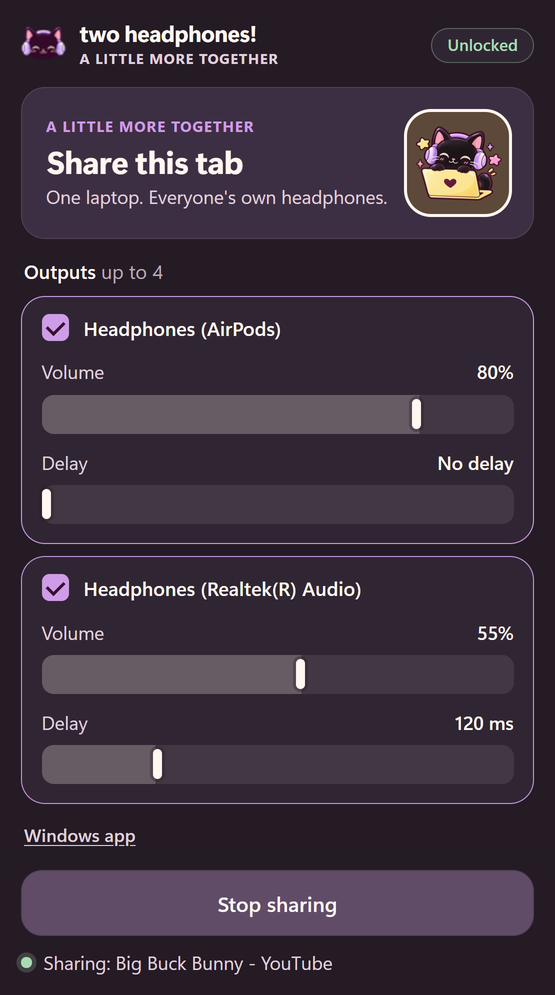
- Pick your outputs: open the tab you want to share, click the cat, and tick up to four headphones or speakers. Each gets its own volume and delay.
- Share audio: press it. The icon shows ON while sharing, and the sound keeps playing when you close the popup.
- Unlock: the first 3 shares are free. After that, click Already bought? Unlock and enter the email you paid with.
Fix a problem
- “I can’t find the file after downloading.”
- Open File Explorer and click Downloads on the left. Or download it again with your email above: it’s free to re-download.
- “Nothing happens when I double-click it.”
- Give it a few seconds: some antivirus apps check new files first. Still nothing? Check your taskbar for a window that opened behind others, or email me.
- “My headphones aren’t in the list.”
- Windows has to see them first: pair Bluetooth headphones in Settings, then close and reopen Two Headphones.
- “Only one pair has sound.”
- Check both outputs are picked and you pressed Share audio. Use Play test tone on each output to find the silent one.
- “The sound is out of sync.”
- Bluetooth runs slightly late. Raise the Delay on the wired or faster pair, 10 ms at a time.
- “I use a Mac or Chromebook.”
- The Windows app won’t run there, but your purchase includes the Chrome extension, which shares a browser tab. Unlock it with your purchase email.
Still stuck? Email abouyaala.abderrazzak@gmail.com with what you see and we’ll help you get it working.